7 simple privacy habits for studying with AI

Whether you’re studying for a degree, developing professionally, or simply taking a course to keep your brain from turning to mush, chances are AI will be part of the process. Yes, letting AI serve up answers on a silver platter can undermine learning and critical thinking, especially since a confident-sounding answer can still be wrong. But used as a tutor, AI can genuinely help you learn, and refusing to use it altogether is already becoming a disadvantage.

But making AI work for you comes with a catch: once you share something with an AI service, you may not be able to fully take it back. A single study prompt, screenshot, or document can reveal your identity, private conversations, unpublished research, and sometimes other people’s sensitive data too. These seven habits will help you use AI without sharing more than you intended.

Jump to:
1. Files and screenshots · 2. Work and research data · 3. Group chats · 4. Personal essays · 5. Managed and shared devices · 6. AI data settings · 7. Sharing AI chats

1. Send the relevant excerpt, not the whole file or screen

The situation: You ask an AI assistant to review an assignment and upload the file with your name, email, class, and your tutor’s comments. For statistics homework, you send it the spreadsheet your group has been working in, complete with your classmates’ names, email addresses, and study year. Or you take a quick screenshot of something on your learning platform, forgetting that the browser window also shows your pinned tabs, open chats, account name, and notifications.

What are the risks: Once those details are uploaded, they are no longer sitting only on your device. They may be saved alongside the conversation and become part of AI training material. And if someone gets into your account or the AI service suffers a data breach, a quick request for study help could expose your personal information, your classmates’ details, or both. It is surprisingly easy to share too much. One university official wrote on Reddit that they had uploaded photos of sign-up sheets to Gemini, only to realize to their horror afterward that the images contained around 200 students’ email addresses. In Australia, a government employee uploaded a spreadsheet to ChatGPT containing names, contact details, addresses, dates of birth, sensitive health information, and financial commentary. The incident was classified as a data breach affecting over 2,000 people.

What to do: Give AI only what it needs, not everything you have. Paste the relevant passage and take a few seconds to check files and screenshots for names, email addresses, IDs, notifications, or anything else you did not mean to share.
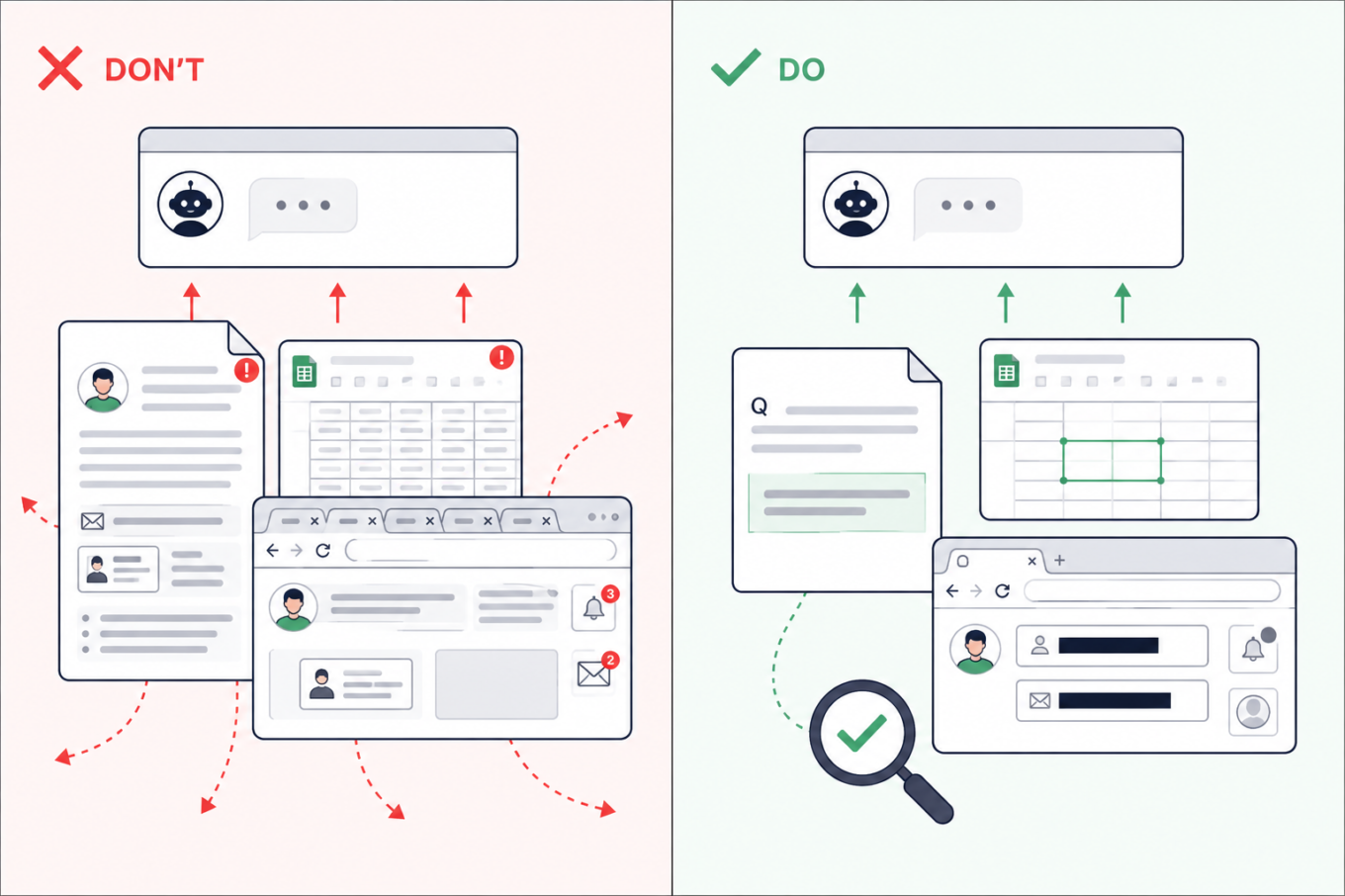
Don’t upload an entire assignment, spreadsheet, or browser screenshot to AI. Share only the relevant passage or cells after removing names, emails, tabs, and notifications

2. Check which AI tools are approved before using work or research data

The situation: Many of us juggle work and study, so material from one easily finds its way into the other. Sometimes that is not carelessness: real company data may be part of the learning process. While working on an assignment in your personal AI account, you might ask the AI assistant about code from work, upload a company spreadsheet for data-analysis practice, or request feedback on an unpublished dissertation chapter.

What are the risks: A personal AI account may not have the protections or defaults required by your employer or university. Uploading confidential material could break an NDA or internal policy — and if the account or service is compromised, that information could be exposed. This has already caught people out. Samsung restricted generative AI after employees reportedly shared confidential source code and meeting information with ChatGPT. A PhD student also claimed on Reddit that findings from uploaded dissertation chapters later appeared in answers generated for a friend.

What to do: Use an AI service approved by your employer or university and remove details the tool does not need. If there is no approved service, keep company files, client information, unpublished findings, and anything covered by an NDA out of AI. You can still describe the problem in general terms without pasting the confidential material itself.
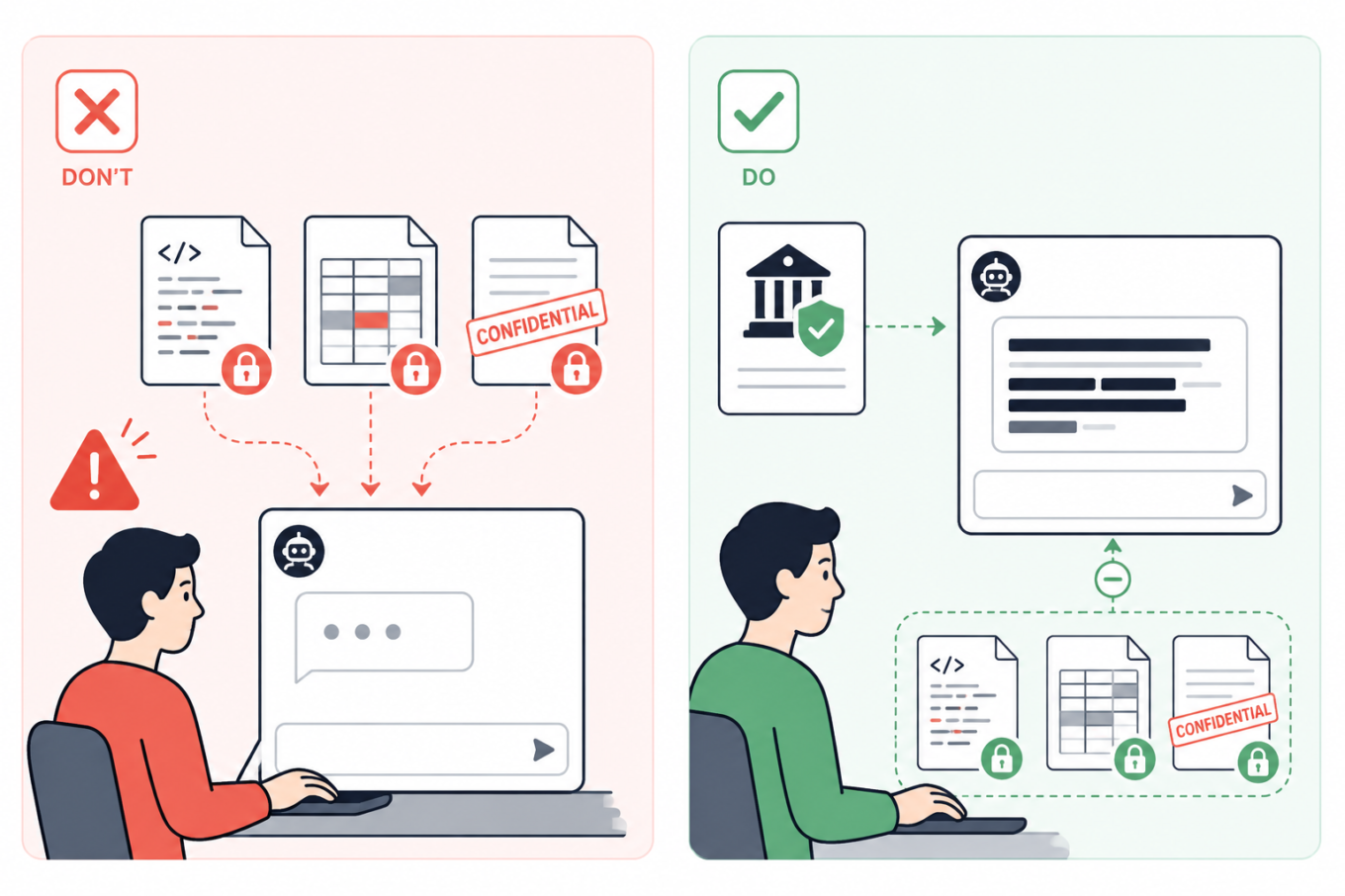
Don’t send confidential code, company data, or unpublished documents to a personal AI account. Use an institution-approved tool and keep protected files out of the chat

3. Summarize group chats yourself — or remove every name first

The situation: Your class or project chat has hundreds of messages, so you ask AI to summarize the decisions, deadlines, and tasks. But the screenshots or exported chat may also bring along people’s names, phone numbers, profile photos, personal comments, and arguments that have nothing to do with the assignment.

What are the risks: A group chat can reveal much more than expected: who people are, how to contact them, and what they discuss. Once sent to an AI service, those details may be stored with the conversation. If your account or the service is compromised, they could be exposed and help scammers create much more convincing phishing messages.

What to do: If possible, write a quick summary yourself and ask AI to turn it into a task list, meeting notes, or a study plan. That way, the assistant gets the information it needs without seeing the original conversation. If you do need to paste messages, remove names, usernames, phone numbers, profile photos, and other identifying details. Where the speakers matter, replace their names with labels such as Student A and Student B.
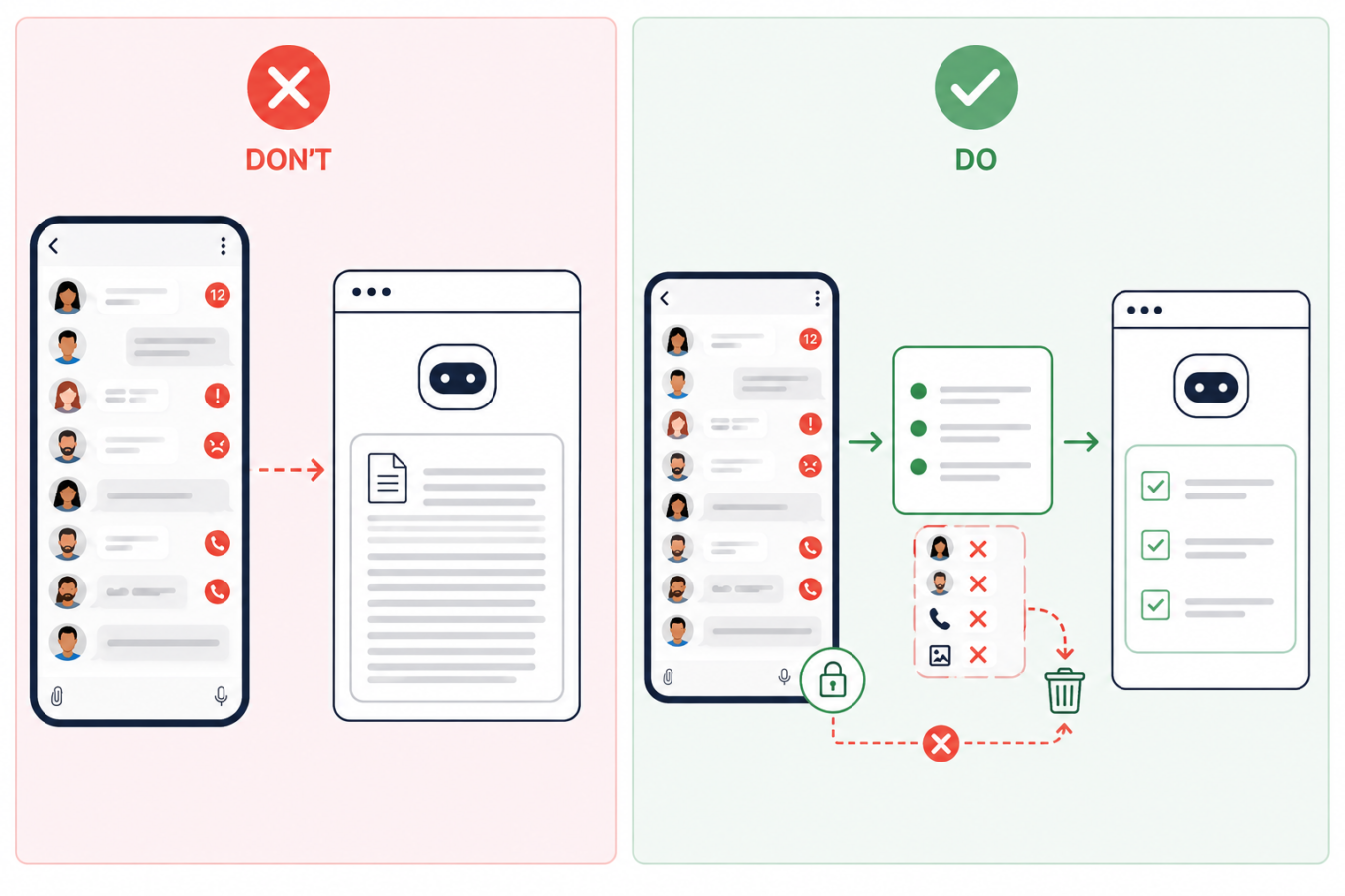
Don’t upload an entire group chat to AI. Summarize the relevant messages first and remove names, phone numbers, profile photos, and other identifying details

4. Remove identifying details from personal essays

The situation: You ask AI to edit a course application, scholarship form, résumé, cover letter, or a piece about your personal experience. Because more context often produces a better answer, it may be tempting to share a lot about your work, location, finances, health, or family.

What are the risks: A prompt does not need to contain your name to identify you. A distinctive combination of places, dates, institutions, and life events may be enough — and once the conversation has been stored, shared, or exposed, those details are difficult to take back.

What to do: Keep the context AI genuinely needs, but remove names, contact details, student numbers, exact dates and locations, and unnecessary references to a specific school or employer. A good rule of thumb is to write sensitive prompts as though the conversation could eventually become public.
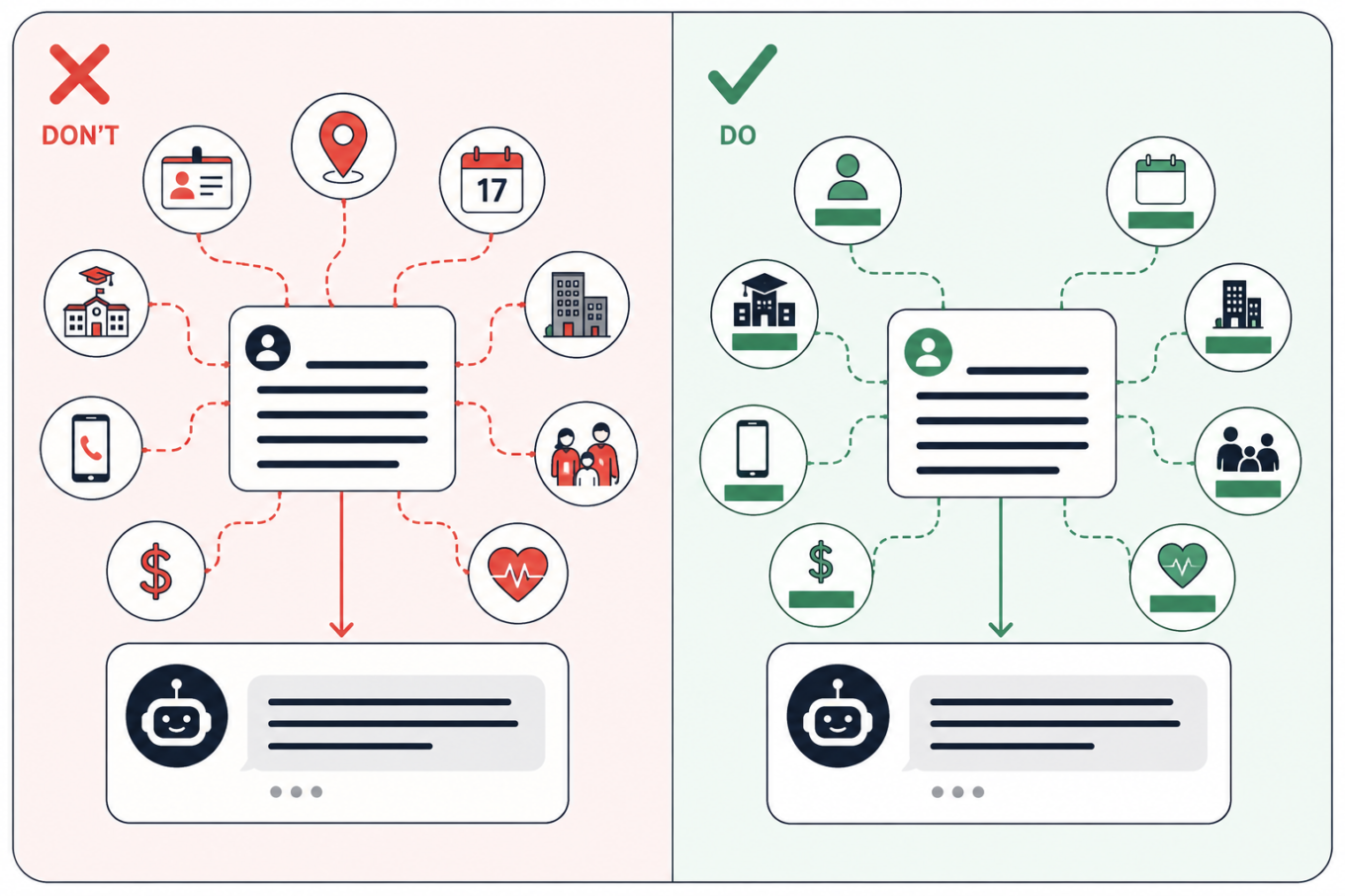
Keep the context AI needs from a personal essay, but remove details that could identify you, such as your school, employer, location, exact dates, contacts, finances, or family information

5. Keep personal searches off managed and shared devices

The situation: You open an AI assistant on a school or work laptop, or on a shared computer in a library. You start with a study question, but because the conversation feels private, you gradually drift into personal topics.

What are the risks: The device or account other than your own or created by you may be monitored — and if you forget to log out of a shared computer, someone else could read your chats. Monitoring tools can scan messages, documents, and searches for signs of violence, self-harm, or other concerning behavior. They do not always understand context. In one case reported by the Associated Press, software flagged a joke written by a 13-year-old in a monitored school chat. She was arrested, interrogated, strip-searched, spent a night in jail, and was later placed under house arrest. That case is extreme, but the same privacy risk applies to shared computers in libraries, coworking spaces, and other public places too.

What to do: Assume that activity on a managed device or account may be visible to the institution. Keep personal conversations, private writing, and sensitive searches on your own device and account. Incognito mode may hide local browser history, but it does not stop monitoring built into the device or school system.
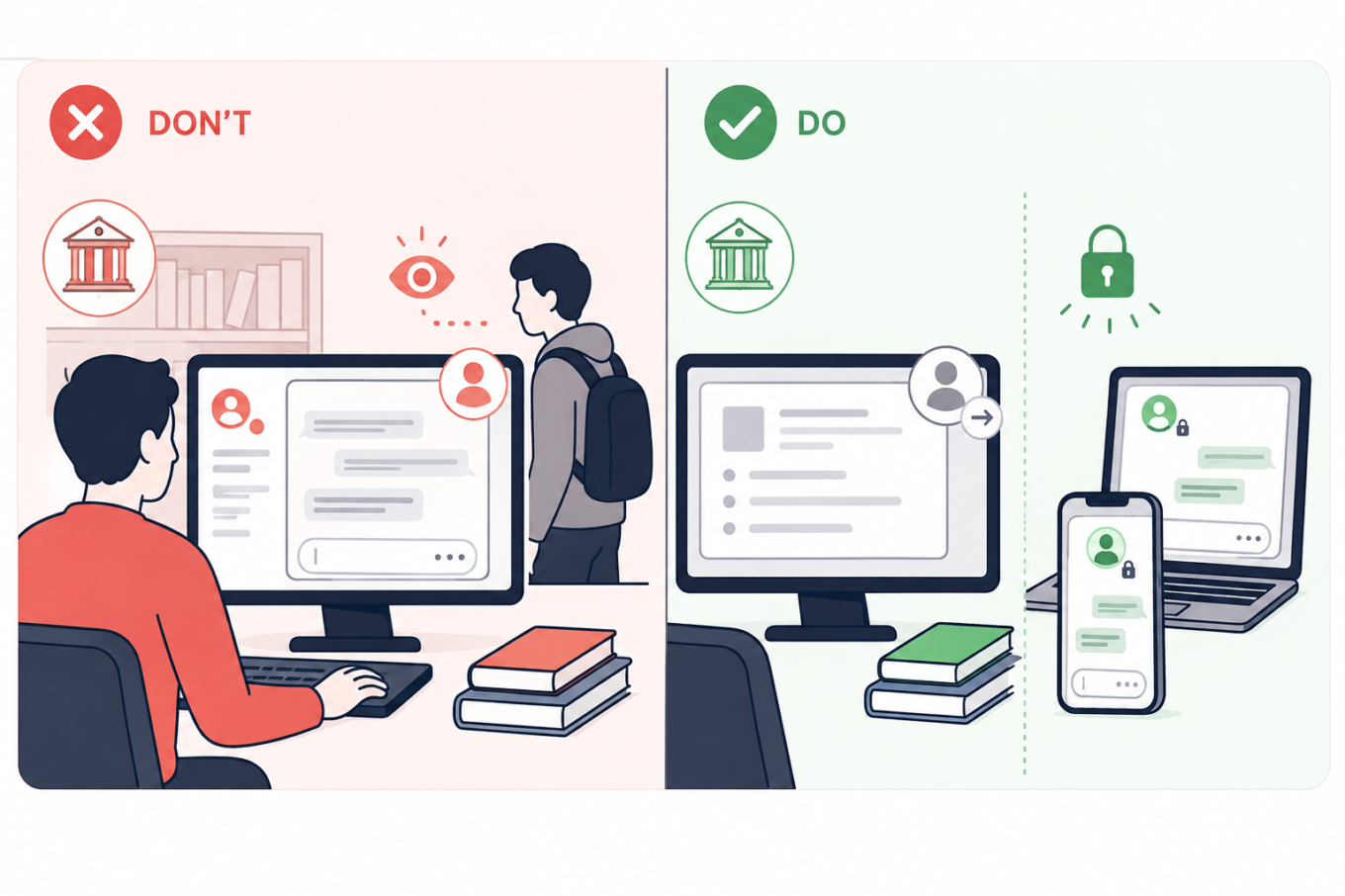
Keep school and shared computers for coursework, and use your own locked devices for personal AI conversations that should not be visible to an institution or another user

6. Turn off model training and use temporary chats for one-off questions

The situation: You use AI to summarize notes, check an assignment, or turn course materials into practice questions.

What are the risks: Depending on the service and settings, your prompts, replies, and uploaded files may remain in your chat history; details may carry into future chats; human reviewers may read some exchanges; and your content may be used to train AI models. Turning off memory does not necessarily stop training or delete past chats. In ChatGPT, regular chats remain in your history even if you turn off model training. Temporary chats are not saved to history and not used for training, but OpenAI may still retain them for up to 30 days, during which they may be reviewed. With regular Claude chats, content allowed for training may remain in de-identified training systems for up to five years, while deleted chats are normally removed from the back end within 30 days. Gemini warns that human reviewers may read some of the data it collects.

What to do: Check the service’s Privacy, Data Controls, Activity, or Model Improvement settings. Turn off optional training and use a temporary or incognito chat when you do not need to keep the conversation. Still, leave sensitive information out: the service has to process anything you send and may keep a copy for some time.
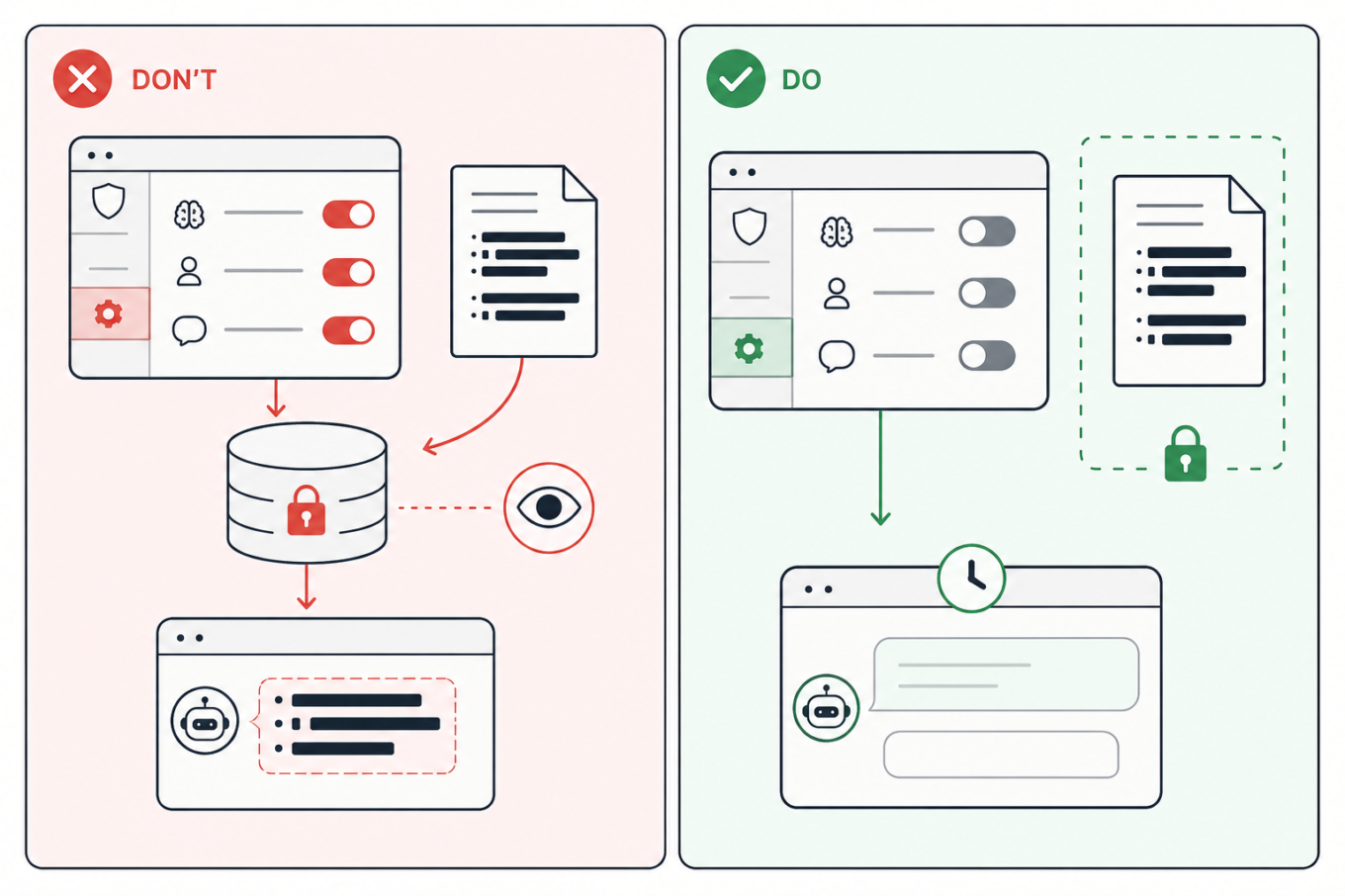
Turn off optional model training and other data-use settings, use a temporary chat when appropriate, and keep sensitive study files out of AI

7. Move the answer to a clean chat before sharing it

The situation: You ask AI to help with an assignment, gradually adding notes, files, and personal context. Once the useful answer is ready, you create a link to send it to a classmate or someone else.

What are the risks: A share link may reveal the whole conversation, not just the answer you meant to send. Anyone who opens it could also see earlier prompts, then forward or save them. Some public links may also appear in search results, either directly or after being posted elsewhere. This has already happened on a large scale: one researcher collected nearly 100,000 publicly shared ChatGPT conversations, while more than 370,000 Grok chats reportedly appeared in search results, some containing personal information, business files, and a password. Public Claude links reportedly exposed health records, internal documents, and children’s contact details too.

What to do: Avoid sharing the original study chat. The safest option is to copy only the answer you need into a separate document and share that. But if you want others to see that it came from AI, ask the same question again in a clean chat, and check the full sharing preview. Open the link in a private browser window to see what others will see. Delete the shared link when it is no longer needed but remember that this cannot erase copies someone has already saved.
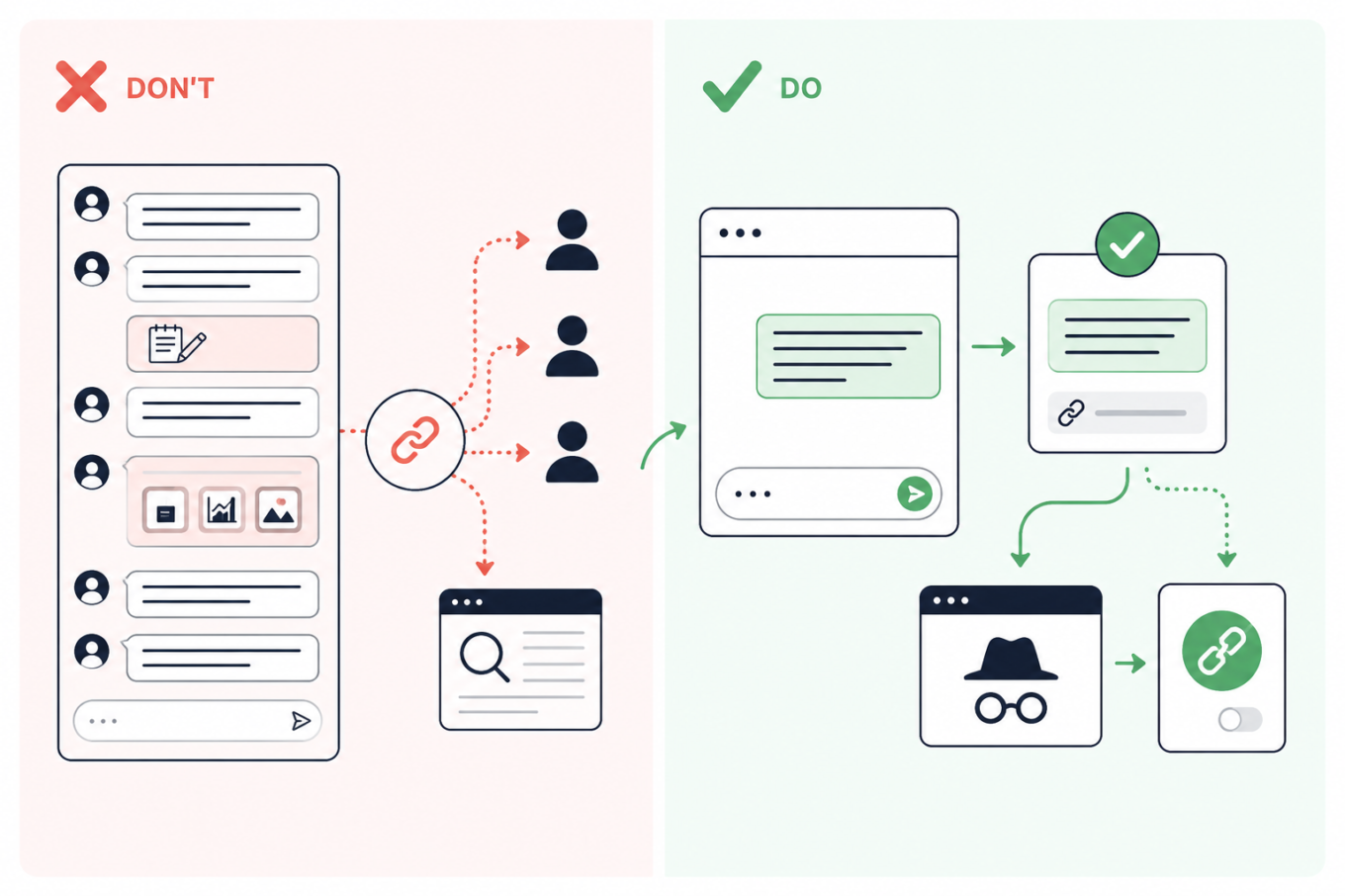
Don’t share a link to a long AI conversation; move the needed answer to a clean chat, preview the link privately, and revoke it after sharing

Podobał Ci się ten post?
AdGuard VPN AdGuard DNS AdGuard Mail AdGuard Wallet
Ekran główny AdGuard dla Windows
Ekran ochrony AdGuard dla Windows, pokazujący funkcje ochrony i ustawienia
Ekran statystyki AdGuard dla Windows, pokazujący statystyki zablokowanych reklam i trackery
Ekran Zarządzanie aplikacjami w AdGuard dla Windows, pokazujący opcje zarządzania ochroną dla aplikacji zainstalowanych na urządzeniu
20 659 20659 recenzji
Doskonały!

AdGuard dla Windows: bloker reklam na PC

AdGuard dla systemu Windows to coś więcej niż bloker reklam. To wielofunkcyjne narzędzie, które blokuje reklamy, kontroluje dostęp do niebezpiecznych stron, przyspiesza ładowanie stron i chroni dzieci przed nieodpowiednimi treściami
Pobierając program, akceptujesz warunki Umowy licencyjnej
Microsoft Store
Pobierając program, akceptujesz warunki Umowy licencyjnej
AdGuard na Windows v8.0, 14-dniowa wersja próbna
Ekran główny AdGuard dla Mac
Ekran Trybu ukrytego w AdGuard dla Mac
20 659 20659 recenzji
Doskonały!

AdGuard: bloker reklam na Maca

AdGuard dla Mac to wyjątkowy bloker reklam zaprojektowany z myślą o macOS. Oprócz ochrony przed uciążliwymi reklamami w przeglądarkach i aplikacjach chroni Cię przed śledzeniem, phishingiem i oszustwami
Pobierając program, akceptujesz warunki Umowy licencyjnej
Przeczytaj więcej
AdGuard na Mac v2.19, 14-dniowa wersja próbna
Ekran główny AdGuard dla Android
Ekran Ochrona przed śledzeniem w AdGuard dla Android
Ekran Zarządzanie aplikacjami w AdGuard dla Android, pokazujący opcje zarządzania ochroną dla aplikacji zainstalowanych na urządzeniu
Ekran statystyki AdGuard dla Android, pokazujący statystyki zablokowanych reklam i trackery
Ekran główny prywatnej przeglądarki AdGuard dla Android
Kod QR, aby pobierz AdGuard dla Android
20 659 20659 recenzji
Doskonały!

AdGuard: bloker reklam na Androida

Blokuje reklamy i moduły śledzące we wszystkich przeglądarkach, grach i innych aplikacjach. Chroni Twoją prywatność i pozwala kontrolować, w jaki sposób aplikacje korzystają z Internetu. Instalowane za pomocą pliku APK
Pobierając program, akceptujesz warunki Umowy licencyjnej
Przeczytaj więcej
Skanuj, aby pobrać
Użyj dowolnego czytnika kodów QR dostępnego w Twoim urządzeniu
AdGuard na Android v4.14, 14-dniowa wersja próbna
Ekran główny AdGuard dla iOS
Ekran ochrony AdGuard dla iOS, pokazujący funkcje ochrony i ustawienia
Ekran statystyki AdGuard dla iOS, pokazujący statystyki zablokowanych reklam i trackery
Kod QR, aby pobierz AdGuard dla iOS
20 659 20659 recenzji
Doskonały!

AdGuard na iOS: bloker reklam poza Safari

Najlepszy bloker reklam na iOS dla iPhone’a i iPada. AdGuard usuwa wszelkiego rodzaju reklamy i elementy śledzące w Safari oraz chroni Twoją prywatność we wszystkich aplikacjach na poziomie DNS
Pobierając program, akceptujesz warunki Umowy licencyjnej
Przeczytaj więcej
Skanuj, aby pobrać
Użyj dowolnego czytnika kodów QR dostępnego w Twoim urządzeniu
AdGuard na iOS v4.5
Ekran główny AdGuard Content Blocker
Ekran Filtry w AdGuard Content Blocker
Ekran ustawienia w AdGuard Content Blocker
20 659 20659 recenzji
Doskonały!

Blokada treści AdGuard

AdGuard Content Blocker eliminuje wszelkiego rodzaju reklamy w przeglądarkach mobilnych, które obsługują technologię blokowania treści — a mianowicie Samsung Internet i Yandex Browser. Jego funkcje są ograniczone w porównaniu z AdGuard na Androida, ale jest darmowy, łatwy w instalacji i wydajny
Pobierając program, akceptujesz warunki Umowy licencyjnej
Przeczytaj więcej
Blokada treści AdGuard v2.8
Ekran główny AdGuard Browser Extension
Ekran Ochrona przed śledzeniem w AdGuard Browser Extension
20 659 20659 recenzji
Doskonały!

Rozszerzenie przeglądarki AdGuard

AdGuard to najszybsze i najlżejsze rozszerzenie blokowania reklam, które skutecznie blokuje wszystkie typy reklam na wszystkich stronach internetowych! Wybierz AdGuard dla swojej przeglądarki i uzyskaj szybkie i bezpieczne przeglądanie Internetu pozbawione reklam.
Instalacja
Pobierając program, akceptujesz warunki Umowy licencyjnej
Instalacja
Pobierając program, akceptujesz warunki Umowy licencyjnej
Instalacja
Pobierając program, akceptujesz warunki Umowy licencyjnej
Instalacja
Pobierając program, akceptujesz warunki Umowy licencyjnej
Instalacja
Pobierając program, akceptujesz warunki Umowy licencyjnej
Przeczytaj więcej
Instalacja
Pobierając program, akceptujesz warunki Umowy licencyjnej
Przeczytaj więcej
Rozszerzenie przeglądarki AdGuard v5.5
Ekran główny Asystenta przeglądarki
20 659 20659 recenzji
Doskonały!

Asystent AdGuard

Towarzyszące rozszerzenie przeglądarki dla aplikacji desktopowych AdGuard. Umożliwia blokowanie niestandardowych elementów na stronach internetowych, dodawanie stron internetowych do listy dozwolonych i wysyłanie raportów bezpośrednio z przeglądarki

Asystent AdGuard v1.4
20 659 20659 recenzji
Doskonały!

AdGuard Home

AdGuard Home to sieciowe rozwiązanie do blokowania reklam i modułów śledzących. Zainstaluj go raz na routerze, aby objąć nim wszystkie urządzenia w sieci domowej — nie jest wymagane żadne dodatkowe oprogramowanie klienckie. Jest to szczególnie ważne w przypadku różnych urządzeń IoT, które często stanowią zagrożenie dla Twojej prywatności

AdGuard Home v0.107
Ekran główny AdGuard Pro dla iOS
Ekran Ochrona w AdGuard Pro dla iOS, pokazujący funkcje i ustawienia ochrony
Ekran statystyki w AdGuard Pro dla iOS, pokazujący statystyki zablokowanych reklam i trackerów
20 659 20659 recenzji
Doskonały!

AdGuard Pro dla iOS

AdGuard Pro na iOS oferuje wszystkie zaawansowane funkcje blokowania reklam. Oferuje te same narzędzia, co płatna wersja AdGuard na iOS. Doskonale blokuje reklamy w Safari i pozwala dostosować ustawienia DNS, aby dostosować poziom ochrony. Blokuje reklamy w przeglądarkach i aplikacjach, chroni dzieci przed nieodpowiednimi treściami i dba o bezpieczeństwo danych osobowych.
Pobierając program, akceptujesz warunki Umowy licencyjnej
Przeczytaj więcej
AdGuard Pro dla iOS v4.5
Ekran główny AdGuard Mini dla Mac
Ekran ochrony Safari w AdGuard Mini dla Mac
Ekran tworzenia reguły w AdGuard Mini dla Mac
20 659 20659 recenzji
Doskonały!

AdGuard Mini dla Mac — bloker reklam Safari

AdGuard Mini dla komputerów Mac to potężny bloker reklam w Safari. Ta lekka aplikacja usuwa reklamy, blokuje moduły śledzące i przyspiesza ładowanie stron. Umożliwia przeglądanie internetu w Safari bez rozpraszania uwagi i chroni prywatność danych
Instalacja
Pobierając program, akceptujesz warunki Umowy licencyjnej
Przeczytaj więcej
AdGuard Mini dla Mac v2.3
Ekran główny AdGuard dla Android TV z włączoną ochroną
Ekran blokowanie reklama AdGuard dla Android TV, pokazujący jego funkcje i ustawienia
Ekran ustawienia AdGuard dla Android TV
Ekran Zarządzanie aplikacjami AdGuard dla Android TV, pokazujący aplikacje, w których reklamy i trackery są zablokowane
20 659 20659 recenzji
Doskonały!

AdGuard dla Android TV

AdGuard dla Android TV to jedyna aplikacja, która blokuje reklamy, chroni prywatność i działa jak zapora sieciowa dla Smart TV. Otrzymuj ostrzeżenia o zagrożeniach internetowych, używaj bezpiecznego DNS i korzystaj z szyfrowanego ruchu. Zrelaksuj się i zanurz się w swoich ulubionych programach z najwyższej klasy zabezpieczeniami bez reklam!
AdGuard dla Android TV v4.14, 14-dniowa wersja próbna
Maskotka AdGuard, Agnar, trzymający pingwina Linux
20 659 20659 recenzji
Doskonały!

AdGuard dla Linux

AdGuard for Linux to pierwszy na świecie systemowy bloker reklam dla systemu Linux. Blokuj reklamy i elementy śledzące na poziomie urządzenia, wybieraj spośród wstępnie zainstalowanych filtrów lub dodawaj własne — wszystko za pośrednictwem interfejsu wiersza poleceń
AdGuard dla Linux v1.4
20 659 20659 recenzji
Doskonały!

AdGuard Temp Mail

Darmowy generator tymczasowych adresów e-mail, który zapewnia anonimowość i chroni prywatność. Brak spamu w głównej skrzynce odbiorczej!
20 659 20659 recenzji
Doskonały!

AdGuard VPN

75 lokalizacji na świecie

Dostęp do wszelkich treści

Silne szyfrowanie

Polityka braku logów

Najszybsze połączenie

Wsparcie 24/7

Wypróbuj za darmo
Pobierając program, akceptujesz warunki Umowy licencyjnej
Przeczytaj więcej
20 659 20659 recenzji
Doskonały!

AdGuard DNS

AdGuard DNS to alternatywne rozwiązanie do blokowania reklam, ochrony prywatności i kontroli rodzicielskiej. Łatwy w konfiguracji i darmowy, zapewnia niezbędną minimalną ochronę przed reklamami, śledzeniem i phishingiem, bez względu na platformę i urządzenie, z którego korzystasz.
20 659 20659 recenzji
Doskonały!

AdGuard Mail

Chroń swoją tożsamość, unikaj spamu i zabezpiecz swoją skrzynkę odbiorczą dzięki naszym aliasom i tymczasowym adresom e-mail. Skorzystaj z naszej bezpłatnej usługi przekazywania e-maili oraz aplikacji na wszystkie systemy operacyjne
20 659 20659 recenzji
Doskonały!

AdGuard Wallet

Bezpieczny i prywatny portfel kryptowalutowy, który daje Ci pełną kontrolę nad Twoimi aktywami. Zarządzaj wieloma portfelami i odkrywaj tysiące kryptowalut, aby je przechowywać, wysyłać i wymieniać
Rozpoczęto pobieranie AdGuard Kliknij przycisk wskazany strzałką, aby rozpocząć instalację Wybierz „Otwórz” i kliknij „OK”. Poczekaj aż plik zostanie pobrany. W otwartym oknie, przeciągnij ikonę AdGuard do folderu „Aplikacje”. Dziękujemy za wybrania AdGuard! Wybierz „Otrwórz” i kliknij „OK”. Poczekaj aż plik zostanie pobrany. W otwartym kliknij „Instaluj”. Dziękujemy za wybrania AdGuard!
Zainstaluj również AdGuard dla urządzeń mobilnych













































